Using WordPress Site Icon (Favicon) with Genesis
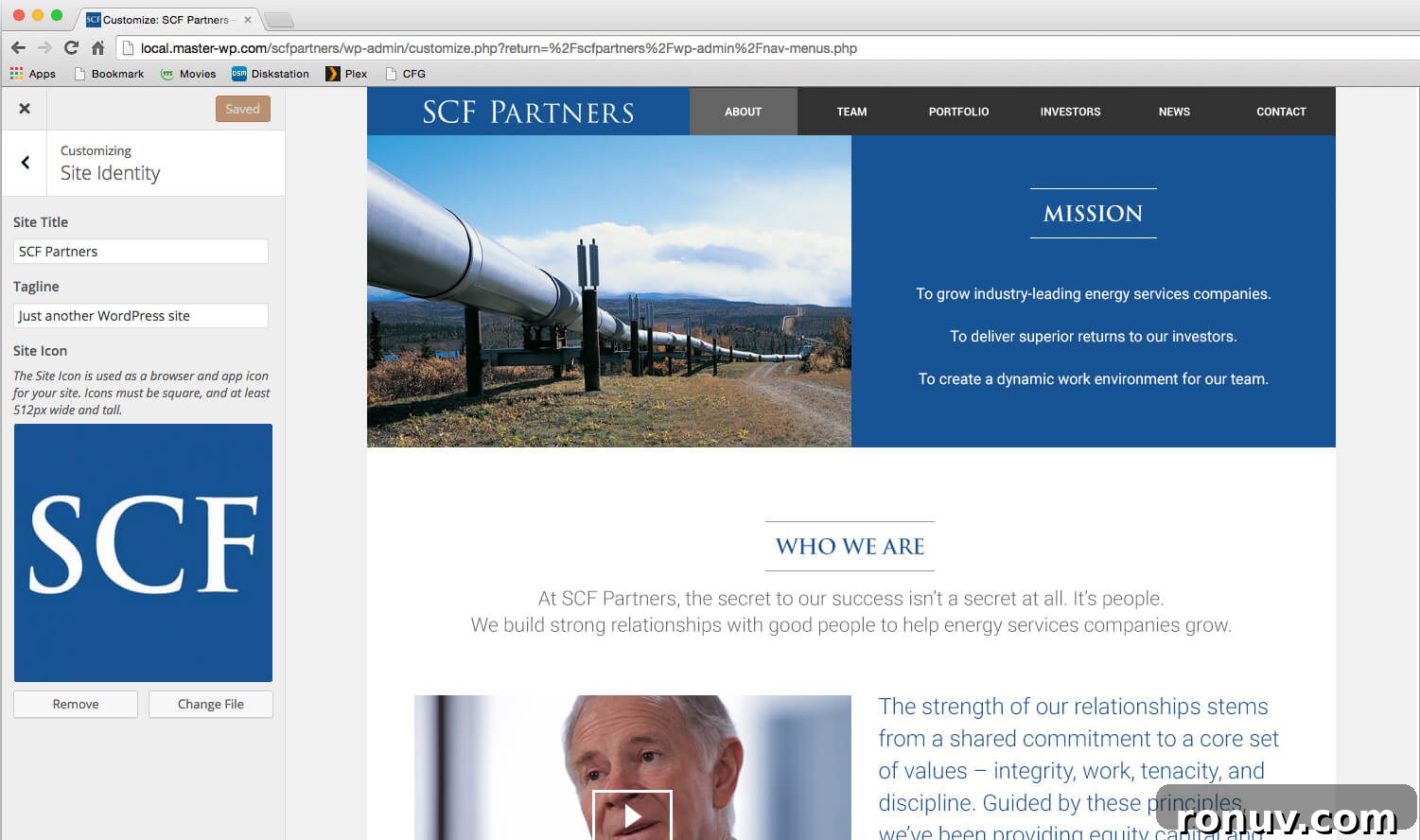
WordPress 4.3 introduced the Site Icon feature—commonly called the favicon—which lets you set the small icon that appears in browser tabs, bookmarks, and on mobile devices. You can add a Site Icon through the Customizer by navigating to Appearance > Customize > Site Identity and uploading an image. WordPress then generates the necessary sizes and outputs the proper markup so browsers and devices display your icon.
The Genesis theme framework also supports favicons, but it handles them differently. If your Genesis theme includes a favicon file (favicon.ico, .gif, .png, or .jpg) placed in the theme’s /images directory, Genesis will output markup to use that file as your site icon. If no favicon is provided in the child theme, Genesis falls back to the default favicon bundled with the framework, which is why many Genesis-powered sites display the Genesis “G” as their icon.
Because both WordPress and Genesis can add favicon markup, sites using Genesis 2.1 with WordPress 4.3 may end up with duplicate favicon code in the page head. Genesis versions 2.2 and later have this behavior disabled to avoid conflicts, but on Genesis 2.1 you should disable the Genesis favicon output if you prefer to use WordPress’ Site Icon feature. Disabling the Genesis favicon makes the Customizer-managed Site Icon the single source of truth for your favicon across browsers and devices.
To prevent duplicate icons on a Genesis 2.1 site, add a small snippet to your child theme’s functions.php file. This removes the Genesis action that injects its favicon tag into the document head, allowing WordPress’ Site Icon to operate without interference. Place the code at the end of your child theme’s functions.php or in a functionality plugin for easier management.
After adding the snippet, clear any caches and verify the head section of your pages no longer contains Genesis’ favicon link. Then upload or select a Site Icon in Appearance > Customize > Site Identity. WordPress will handle generating the different icon sizes and inject the standard site icon markup for modern browsers and mobile platforms.
Best practices for favicons and Site Icons:
- Use a square image with sufficient resolution (at least 512×512 recommended) so WordPress can generate multiple sizes without quality loss.
- Test the icon in different browsers and on mobile devices to ensure it appears as expected in tabs, bookmarks, and homescreen shortcuts.
- Clear server and browser caches after changes, since icon files and head markup can be cached aggressively.
- For Genesis users, prefer disabling the built-in favicon output when using the WordPress Site Icon to avoid duplicate code and possible conflicts.
Following these steps lets you manage your site’s favicon from the WordPress Customizer while ensuring Genesis does not duplicate the icon markup. The approach is simple, reversible, and keeps your site head clean and SEO-friendly by avoiding redundant link tags.